
How to use Microsoft Excel Formula
Formulas are the real workhorses of an Excel 2010 worksheet. If you set up a formula properly, it computes the correct answer when you enter it into a cell. From then on, it keeps itself up to date, recalculating the results whenever you change any of the values that the formula uses.
For example, to create a formula in cell C2 that multiplies a value entered in cell A2 by a value in cell B2, enter the following formula in cell C2: =A2*B2
To enter this formula in cell C2, follow these steps:
-
Select cell C2.
-
Type the entire formula =A2*B2 in the cell.
-
Press Enter.
| This Mathematical Operator . . . | . . . Is Used For |
|---|---|
| + (plus sign) | Addition |
| – (minus sign or hyphen) | Subtraction |
| * (asterisk) | Multiplication |
| / (slash) | Division |
| ^ (caret) | Raising a number to an exponential power |
| |||||||||||||||
 | ||||||
| To start the formula, type =, and then select cell A2. |
5. Select cell B2 in the worksheet by using the mouse or the keyboard.
This action places the cell reference B2 in the formula.
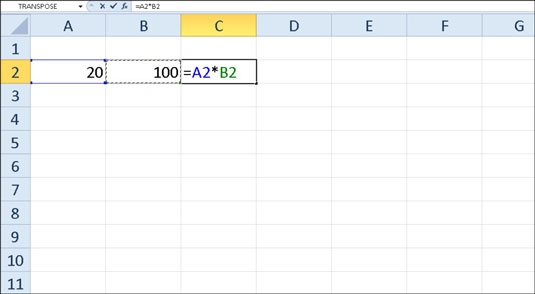
6. Press Enter.
Excel displays the calculated answer in cell C2 and the formula =A2*B2 in the Formula bar.
|
Remember: If you select the cell you want to use in a formula, either by clicking
it or by moving the cell cursor to it, you have less chance of entering
the wrong cell reference.
Now comes the fun part: After creating a formula that refers to the
values in certain cells (rather than containing those values itself),
you can change the values in those cells, and Excel automatically
recalculates the formula, using these new values and displaying the
updated answer in the worksheet. Using the example shown in the figures,
suppose that you change the value in cell B2 from 100 to 50. The moment
that you complete this change in cell B2, Excel recalculates the
formula and displays the new answer, 1000, in cell C2.


No comments:
Post a Comment